
Kids Microsoft Accounts & Parental Controls Made Easy
Set up kids Microsoft accounts and parental controls with this easy guide. Learn to use Xbox Family Settings to manage online play, friends, and more.
Table of Contents
Why Do Kids Need Their Own Microsoft Accounts?
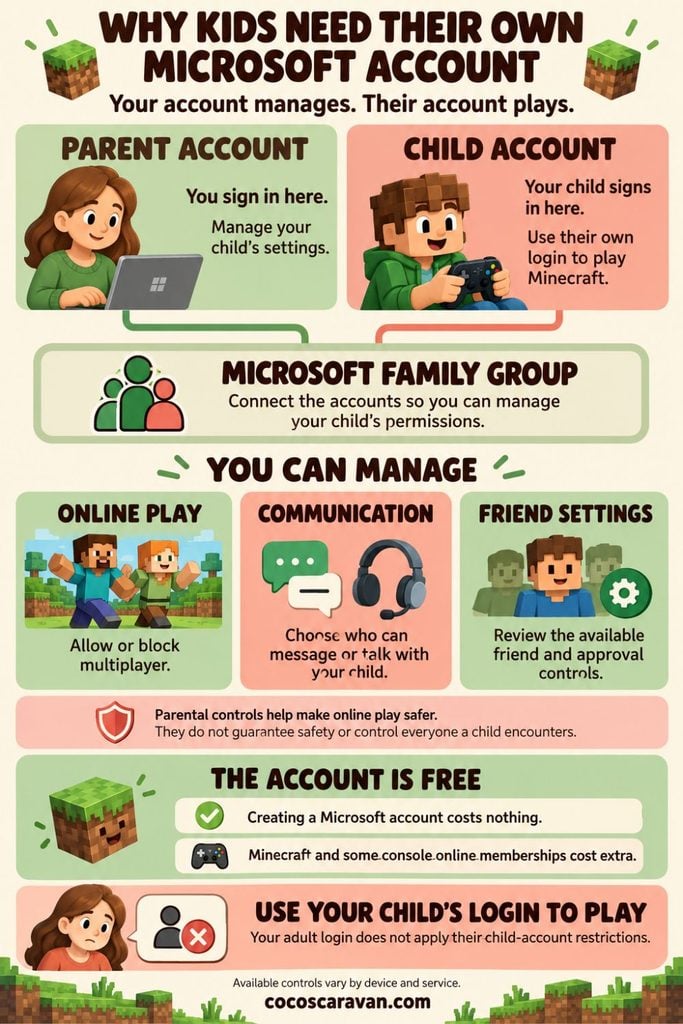
Think of kids Microsoft accounts as their own login for Minecraft. It’s free to create one, and it helps them connect with friends and family when playing online even if everyone uses different devices.
Not sure which device your family can use? Start with my guide to what devices can play Minecraft and what you need to play with friends.
Giving your child their own account also lets you set up parental controls. When you connect it to your family group, you can manage whether they play online, who can communicate with them, and the available settings for adding friends. These controls help make online play safer and give you more say in how your child connects with others. I’ll explain those settings further down in this post.
What You Need Before Getting Started
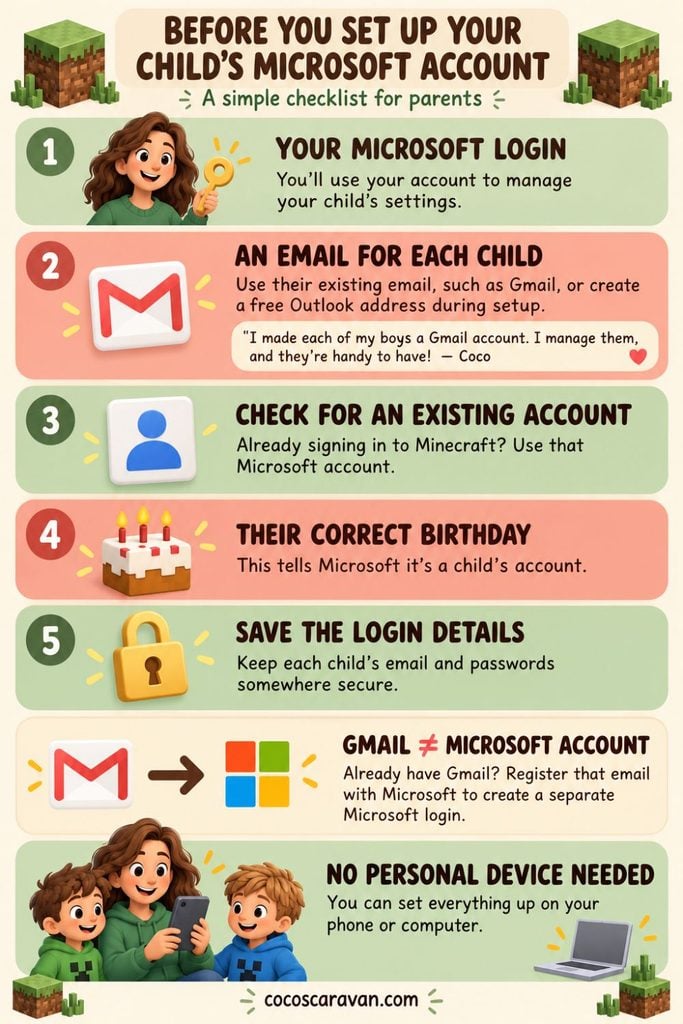
Before setting up kids Microsoft accounts, grab your phone or computer and have these things ready:
- Your own Microsoft login. You’ll use your account to manage your child’s settings. If you already use Outlook, Hotmail, or Xbox, you may already have one!
- An email address for each child. I made my boys their own Gmail accounts because I figured they’d be useful to have anyway. I manage the accounts for them, but it’s helpful for each child to have their own email address for things like this. You can use an existing Gmail address to create a Microsoft account they don’t need an Outlook address. If your child doesn’t have an email yet, you can create a free Outlook address during setup instead.
- Your child’s existing Microsoft login, if they have one. If they already sign in to Minecraft, check which account they use before creating another. Having Gmail doesn’t automatically mean they have a Microsoft account you’ll register that email with Microsoft.
- Your child’s correct birthday. This helps Microsoft recognize that the account belongs to a child and apply the appropriate settings.
- Somewhere to save everyone’s login details. Keep track of which email belongs to each child. A password manager can help you store the passwords securely.
Your child doesn’t need their own phone or computer. You can set everything up using your device and manage their accounts for them.
How to Create Your Child’s Microsoft Account
Creating kids Microsoft accounts takes a few steps. Use your child’s information first you’ll sign in as the parent when asked.
- Create a Microsoft account. Enter your child’s email address, such as their Gmail. If they don’t have one, choose the option to create a free Outlook address.
- Follow the login prompts. Create a unique password if asked, or enter the verification code Microsoft sends to their email. Save their sign-in details.
- Enter your child’s information. Use their name and correct birthday, so Microsoft knows this is a child’s account.
- Give parental permission. When prompted, sign in with your own Microsoft account and follow the consent steps.
- Check your Microsoft family group. Sign in as yourself to check whether your child is listed. If not, add their account we’ll cover that next.
Already have an account for your child? Sign in here instead of creating another one.
Add Your Child to Your Microsoft Family Group
Think of a Microsoft family group as the connection between your account and your child’s. It lets you manage settings for kids Microsoft accounts from your own login.
First, check whether your child is already listed. They may have been added during account setup. If they’re there, you can skip the invitation!
- Open your Microsoft family group. Sign in with your own Microsoft account.
- Select “Add a family member.” Choose Member for your child. The Organizer role is for the adult managing the settings.
- Enter your child’s Microsoft account email. This is the address you used when creating their account—even if it’s Gmail. Follow the prompts to send the invitation.
- Open the invitation in your child’s email. Follow the link and sign in with their Microsoft account to accept. Complete any parental permission prompts.
- Check your family group again. Sign back in as yourself and confirm your child appears as a member. Repeat for each child.
Does it say “Pending”? That means the invitation still needs to be accepted. Once they’ve joined, we’re ready to set up parental controls!
Set Up the Xbox Family Settings App
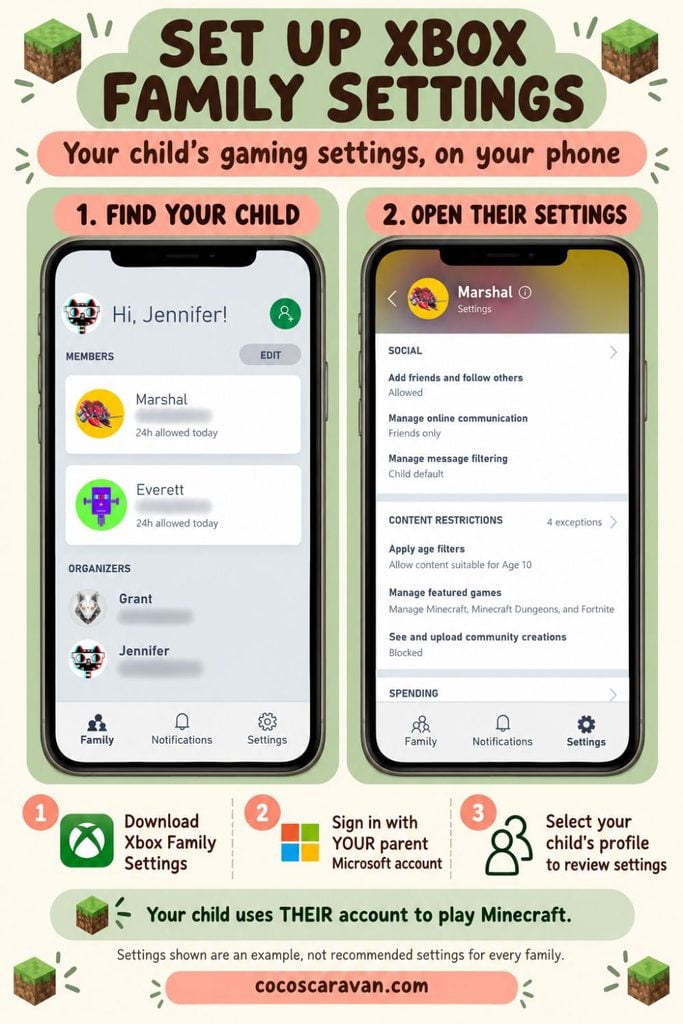
The Xbox Family Settings app lets you manage gaming settings for kids Microsoft accounts from your phone. It’s free, and you sign in as the parent.
Don’t let “Xbox” confuse you! Some Minecraft account settings also apply when your child plays on another device, such as a Switch or iPad. But the app doesn’t control that device’s screen time or every other feature.
Here’s How to Get Started
- Download Xbox Family Settings. Follow the link for the iPhone or Android app. Choose Xbox Family Settings, rather than the regular Xbox app or Microsoft Family Safety.
- Sign in with your Microsoft account. Use the parent account you used to create your family group.
- Find your child’s profile. If they’ve already joined your family group, look for their name. If they’re missing, check that you’re using the right parent account and that their invitation was accepted.
- Select your child to review their settings. Follow any setup prompts. We’ll walk through multiplayer, communication, and friend settings next.
Your child should still use their own Microsoft account inside Minecraft. That’s how the settings you choose connect to their online play.
Can’t find a setting in the app? You can also open Xbox privacy and online safety settings in your browser. Sign in as the parent and select your child.
Choose Who Your Child Can Play and Talk With
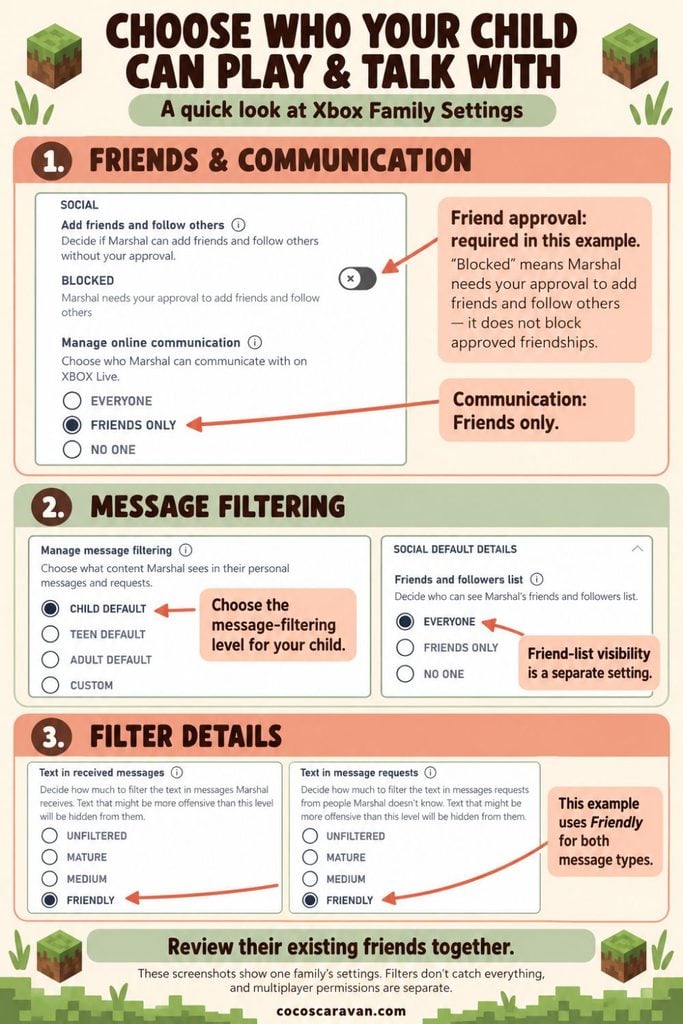
With kids Microsoft accounts connected to your family, open Xbox Family Settings, select your child, and review these settings:
- Multiplayer: Allow this if you want them to play with others. Playing across devices, like Switch and Xbox, may also require cross-network play.
- Add friends and follow others: Choose parental approval if available. Allowed means you shouldn’t assume each new friend needs your permission.
- Manage online communication: Choose Friends only, where available, or block communication. Review their friend list together so you know who can contact them.
- Manage message filtering: Review the filters that help screen inappropriate messages.
Allowing online play doesn’t mean they can only play with approved friends. Check the worlds and servers they join, and test the settings together before they play.
Manage Screen Time, Purchases, and Age Limits
You can also manage how long your child plays, what they can buy, and which games they can access. Open Xbox Family Settings and select your child to review these controls for kids Microsoft accounts:
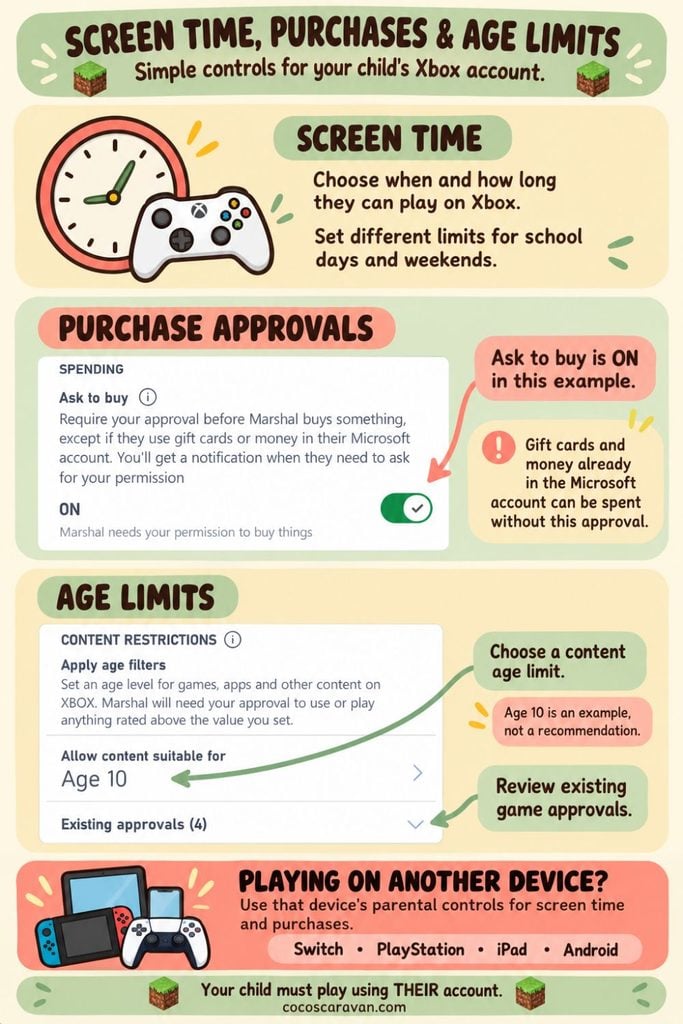
- Screen time: Choose when and how long they can play on Xbox. You can set different limits for school days and weekends and respond to requests for extra time.
- Purchases: Look under Spending for purchase approval settings. Review Ask to Buy and any money already in their account.
- Age limits: Under Content Restrictions, choose Apply age filters. Set the content age limit you’re comfortable with and review any exceptions for individual games.
These settings don’t control every device. For screen time and purchases on a Switch, PlayStation, iPad, or Android tablet, use that device’s parental controls too. For Windows computer limits, check your Microsoft family dashboard.
Make sure your child plays using their own account, so their settings apply!
Sign In to Minecraft on Your Child’s Device
Now it’s time to connect kids Microsoft accounts to Minecraft! Have your child’s email address and sign-in details ready.
- Open Minecraft on the device your child will use.
- Choose the Microsoft sign-in option. The wording may vary by device.
- Follow the instructions on the screen. You may enter their login directly or use your phone to open a website and enter a code.
- Sign in with your child’s Microsoft account—not yours. If Microsoft asks for parental permission, use your account only for that approval step.
On Switch or PlayStation, open Minecraft using your child’s console profile first. Then follow the Microsoft sign-in instructions.
On Xbox, make sure your child’s Xbox profile is signed in before opening Minecraft.
On a computer, sign in to the Minecraft Launcher with your child’s account. Choose Bedrock to play with family on consoles or mobile devices.
Once connected, Minecraft should show their gamertag, which is their gaming nickname. Check that it belongs to the right child so their parental settings apply!
Signing in doesn’t buy the game or an online membership. Those still need to be available for your setup.
Common Problems and Simple Fixes
Having trouble with kids’ Microsoft accounts? Here are a few things to check:
- “Multiplayer is disabled.” Check your child’s multiplayer permissions in Xbox Family Settings. Playing across different platforms may also require cross-network play.
- My child isn’t showing in my family group. Make sure their invitation was accepted and you’re signed in with the correct parent account.
- They can’t join a friend’s game. Check that everyone has compatible Minecraft editions, updated games, and any required console online memberships.
- I changed a setting, but it isn’t working. Close and reopen Minecraft. If needed, sign out and back in with your child’s account.
- Screen time isn’t limiting their Switch or iPad. Set those limits through the device’s own parental controls.
Still stuck? Visit Minecraft Help for help with the exact error message you’re seeing.
A Little Setup Now, More Fun Together Later
Setting up kids Microsoft accounts and parental controls can feel like a lot at first. I had to figure it out too, which is exactly why I wanted to put everything in one place! Take it one step at a time, test the settings together, and adjust them as your kids grow.
These tools help, but keep talking with your kids about who they play with and remind them they can come to you if something feels uncomfortable.
Ready to play together? My guide to what devices can play Minecraft explains your options and what you’ll need for your first family game night!